Settings
Settings is where a firm admin sets who may act and on what terms: the IP addresses that may reach the workspace, the cap on what contracts may pull, the firm's identity on every report, and the compliance standing CRX holds for the firm. The left rail lists each control, and this page walks through them from top to bottom. Time: ~3 min.
How to cap what contracts can pull?
Open Approve amount cap, then click Set amount cap and enter a net USD figure. The cap limits what contracts may withdraw on the firm's behalf — the standing approval a deposit grants. Set it to the most the firm intends to put to work, leaving a leaked approval unable to pull more than that. Clear amount cap removes the ceiling; with no cap set, the standing approval applies.
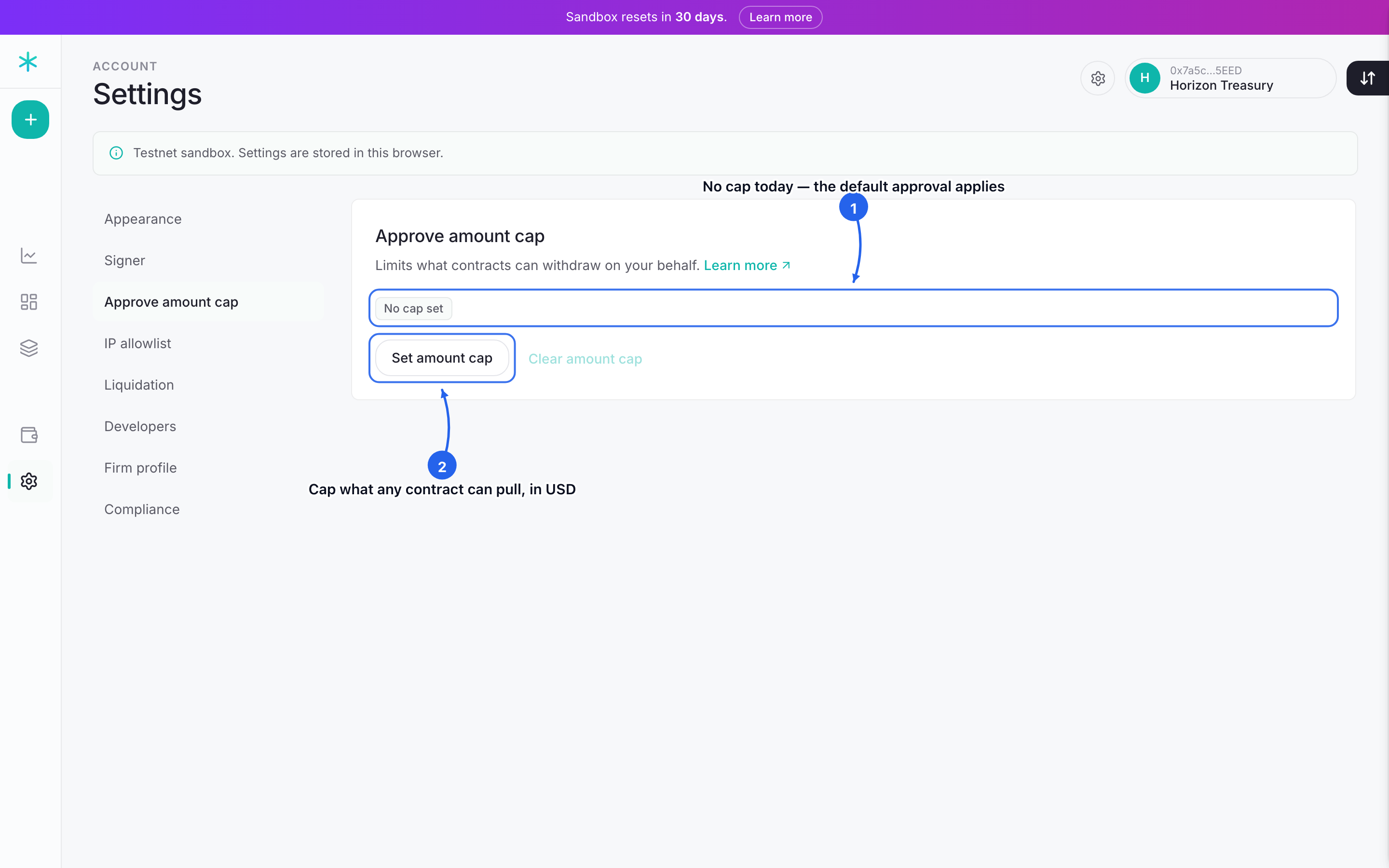 The Approve amount cap pane: no cap set out of the box, with Set amount cap and Clear amount cap.
How to lock access to known IPs?
Open IP allowlist, then Manage allowlist. Add each address — an IPv4 or IPv6 address, a CIDR block, or a range — with a label, then click Activate allowlist. Once the list is active, only a listed address can reach the workspace, and every other address is refused. This pins access to the firm's own offices and VPN, leaving a stolen session from an unknown network unable to open the desk.
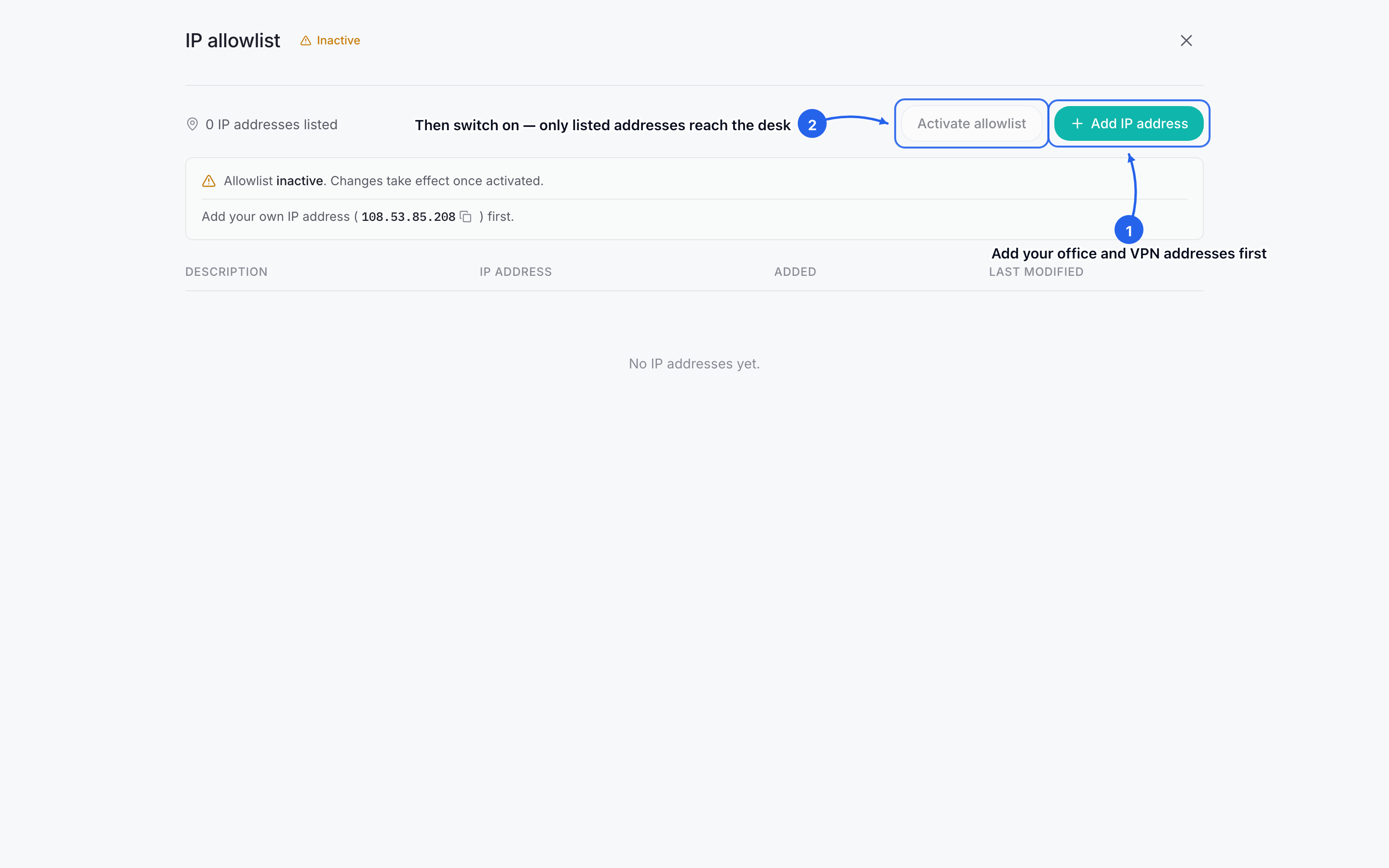 The IP allowlist manager: add each address with a label, then Activate allowlist to restrict the workspace to listed addresses.
WarningBuild the list before activating it. Activation is offered only once at least one address is listed, and the screen surfaces the admin's own IP to seed the list first. Activating before adding the admin's own address locks the admin out. The list sits inactive — and harmless — until it is switched on.
Where are the developer tools?
Open Developers. API keys, endpoint references, and live API monitoring live there rather than on this page. See the Developers handbook (~1 min) for the full surface.
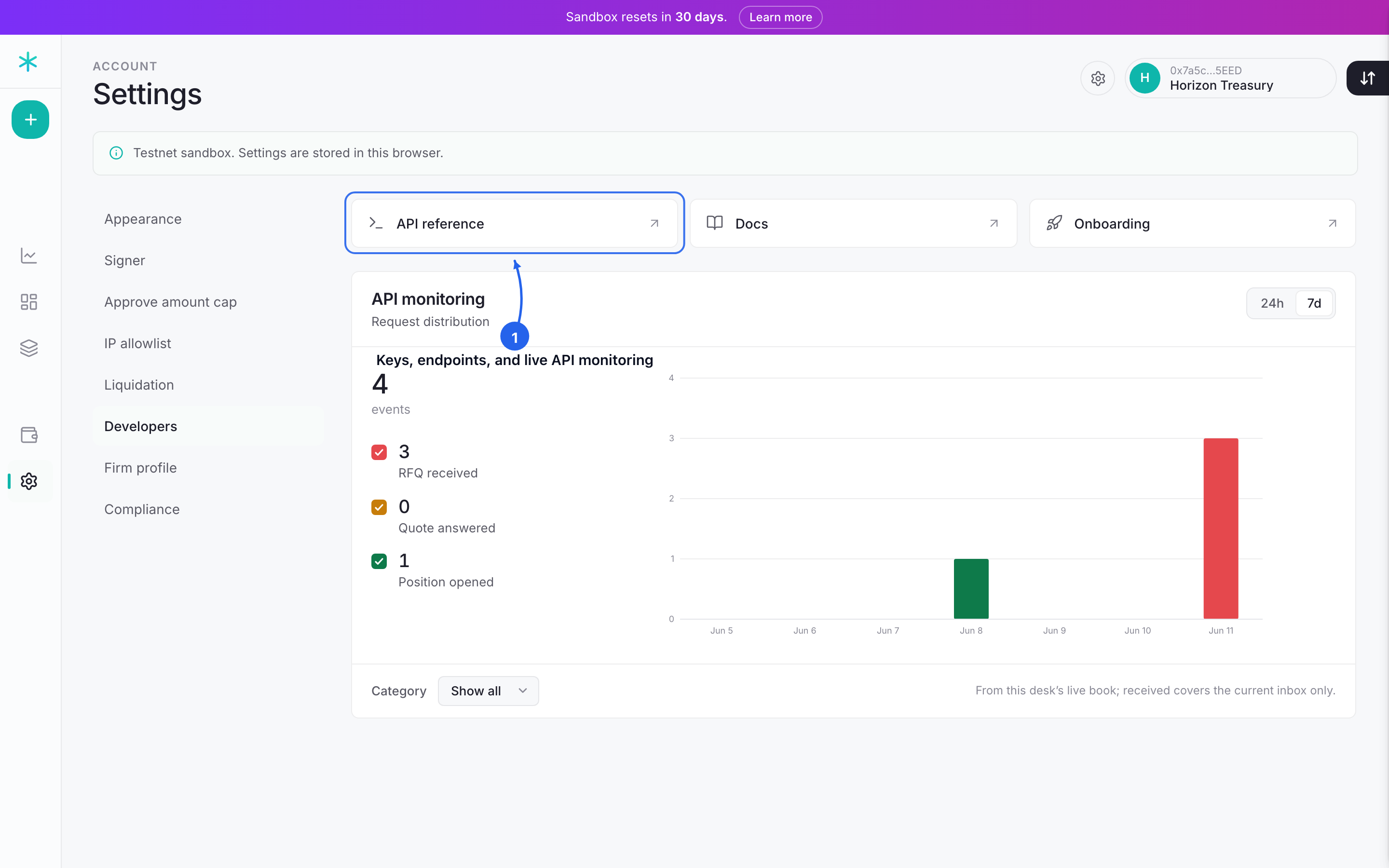 The Developers pane: API reference, docs, and onboarding links, with live API monitoring.
Next: FAQ (~3 min). The questions a treasurer asks before committing collateral.